Repeat Holiday Shoppers: What to Ask, What to Skip
Which profile questions are worth asking repeat holiday gift shoppers, which to skip, and how to let them edit and reuse saved profiles with Profily.
 Luke Tran
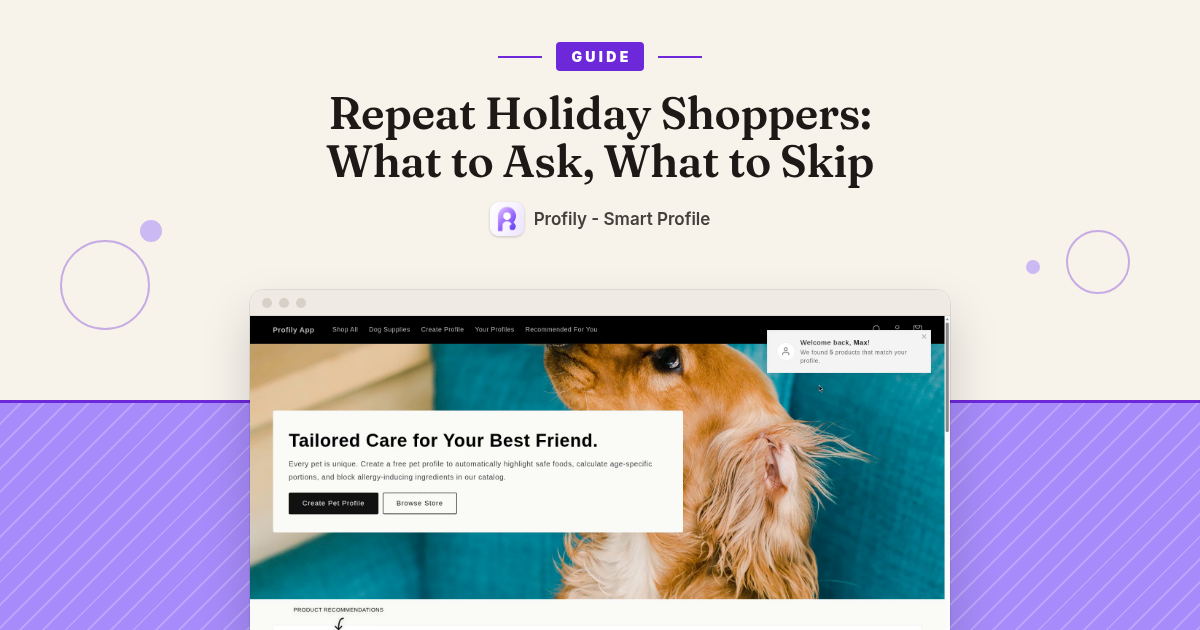
Holiday shoppers come back. Often they are buying for the same people as last time: a partner, a parent, a child, a dog. If your store remembers who those people are, the second visit is quick. If it asks everything again, or asked too much the first time, most shoppers skip the form and guess.
This guide is about the questions themselves: which ones are worth asking a repeat gift shopper, which ones to cut, and how to keep the answers useful after the first visit. The advice works for any profile quiz or gift finder. The setup steps at the end show how to do it in Profily.
The three-question test
Before you keep any question on your profile form, check it against these three tests:
- Will you use the answer? If no product decision, badge, or recommendation depends on it, the shopper is doing work for nothing. Cut it.
- Can it be answered in a few seconds on a phone? Pick-from-a-list answers pass. “Describe your skin in a few words” does not.
- Will it still be true next visit? A saved profile is only worth saving if the answers stay true. Shoe size, skin type, and allergies usually do. This week’s budget does not.
A question that fails any of the three does not belong in a saved profile.
What to ask
1. Who is this for?
Start with a short name for the person (or pet) the profile is about: “Mom”, “Leo”, “Max”. This one question does a lot. It lets one shopper keep a separate profile for each person they buy for, and it makes every later screen personal. In Profily, the profile name shows in the floating profile selector and in product page badges such as “Fit for Max”.
2. One or two fit facts that decide yes or no
Ask for the facts that actually change which products fit. For clothing that is size. For skincare it is skin type. For pet food it is species and size. Keep it to the one or two facts your catalog really splits on. If your store only sells one size range, do not ask for size.
3. What to avoid
For gifts, “what should I not buy?” is often more valuable than “what should I buy?”. Allergies, ingredients to avoid, or materials someone cannot use are stable facts, and they prevent the worst kind of gift: one that cannot be used at all. A single Multi-Select question (“Allergies” or “Ingredients to avoid”) covers it.
Make every answer a choice
Wherever you can, turn the question into a list of options instead of a text box. “Dry, oily, combination, sensitive, normal” is fast to tap and easy to match to products. A typed sentence is slow to enter and hard to use.
What to skip
- Long forms. For a gift shopper on a phone, three to five questions is plenty. Every extra question is one more reason to close the form.
- Questions you will not use. “How did you hear about us?” and “favorite color” feel harmless, but if nothing on the store changes because of the answer, leave them out.
- Answers that change every visit. Occasion, budget, and delivery date are different each time. They are better handled by your collections, filters, and shipping info than by a saved profile. If you save “Christmas” as the occasion, the profile is wrong by spring.
- Too many required fields. Mark a question required only if your recommendations break without it. Usually that is the name and one fit fact.
- Personal details you do not need. An exact birthday or a photo is more than most gift matching needs. If an age range does the job, ask for the range.
Let shoppers fix what they told you
People change. A child moves up a size, a new allergy shows up, a partner switches skincare. If the only way to update a profile is to start a new one, shoppers will either live with wrong answers or stop using it.
So give returning shoppers an easy place to see and edit their saved profiles, and make it clear they can delete one they no longer need. A profile that can be corrected in ten seconds stays accurate for years.
Set it up in Profily
Here is how the advice above maps to real Profily settings, and what shoppers see after each step.
Step 1: Trim your questions
Where: Profily → Profile Schema.
Each field here is one question on the storefront Profile Form. If you started from an industry preset (Pet Store, Baby & Kids, or Beauty & Skincare), you already have a set of fields. Go through them with the three-question test:
- Delete any field you will not use in a matching rule. Use the Delete button rather than unticking Enabled, so the question is really gone from the form.
- Set the Type of your fit and avoid questions to Select or Multi-Select, and list the choices in Options (comma-separated).
- Skip the Date and Photo types for now. On the storefront they show as plain text boxes, so a Select (for example an age range) works better.
- Tick Required only for the name and the one fit fact your rules depend on.
- Drag the handle so the name question comes first, then the fit fact, then the avoid question. The order here is the order on the form.
- Click Save Schema.
One caution for the busy season: do not switch your industry preset after you go live. Changing the preset resets the Profile Schema, and rules that use removed fields stop matching.
On the storefront: the Profile Form shows only your remaining questions, in your order. Required questions get a red *, and submitting one empty shows “This field is required”. When the shopper submits, they see “Profile created!”.
Step 2: Put the avoid question to work
Where: Profily → Matching Rules → Create Rule.
An avoid question only helps if a rule uses it. For example, with the Pet Store preset:
- Rule Name: “No grain for grain allergy”
- Badge Type: Not Recommended (or Warning, if you want a softer note)
- Add Condition Group → Profile Field: Allergies, Operator: Contains, Value: grain
- Apply to: By Tag →
grain(or pick Specific Collections or Specific Products)
Use Test This Rule to check it: enter Allergies = grain in the sample attributes and you should see “✓ Rule Matches!”. Then click Create Rule. Add a Great Fit rule for your fit fact the same way.
On the storefront: once matches are recomputed (this runs in the background, so allow about two minutes), the Profile Badge block on matching product pages shows “Not for {name}” for the Not Recommended rule, “Warning for {name}” for a Warning rule, and “Fit for {name}” for a Great Fit rule, using the active profile’s name. Clicking the badge opens the reasons.
Step 3: Give shoppers room for everyone they buy for
Where: Profily → Settings → App Settings.
- Max Profiles Per Customer sets how many profiles one shopper can keep. The default is 3. Basic allows up to 3; on Pro you set your own limit, which helps if your shoppers buy for a whole family.
- Enable guest profiles (no login required) is on by default. Keep it on so holiday shoppers who never log in can still save a profile.
- Click Save All Changes.
On the storefront: a logged-out shopper can create profiles straight away. They are kept in that browser, and if the shopper logs in later, their guest profiles are merged into their customer account. A shopper who tries to create one more than your limit sees “Maximum of N profiles allowed”.
Step 4: Add a place to edit and switch profiles
Where: Shopify admin → Online Store → Themes → Customize. Make sure App embeds → Profile App is on (every Profily widget needs it). Then, on a page template such as “My profiles”, add the Profile Form and Profile List blocks. Click Save.
On the storefront: the Profile List shows all of the shopper’s profiles with options to edit, delete, or switch. A shopper whose child moved up a size edits that one answer, and after the next recompute the badges follow the new answer. Deleting asks “Are you sure you want to delete this profile?” first.
Step 5: Let returning shoppers pick up where they left off
Where: same Profile App embed → Profile Selector group. Enable Floating Selector is on by default; choose Bottom Right or Bottom Left for Position.
On the storefront: a small floating profile selector sits in the corner of every page. It shows the active profile’s name (it reads “Select Profile” only when no profile is active). A returning shopper buying for Mom this time just switches to the “Mom” profile instead of filling a new form, and the product page badges change to match that profile.
If you also want a short “Welcome back” greeting when a shopper with a saved profile returns, see our earlier guide on returning shopper profiles without extra forms. For a full walkthrough of matching rules, see how to match shoppers to products that fit them.
Test it like a repeat shopper
- Open your store on your phone, in a normal (not private) browser window.
- Time yourself filling in the profile form. If it takes more than about 30 seconds, cut another question.
- Create a profile with an avoid answer your rule uses, then wait about two minutes.
- Open a product your rule targets and check the badge shows the profile name.
- Close the tab, come back later in the same browser, and check the floating selector still shows that profile.
- Edit one answer in the Profile List, wait a couple of minutes, and check the badge updates.
Quick checklist
- Ask: who it is for, one or two fit facts, what to avoid.
- Skip: long forms, unused questions, answers that change every visit, details you do not need.
- Use choices instead of text boxes. Require as little as possible.
- Give shoppers one place to edit, delete, and switch profiles.
Profily turns those few answers into “Fit for {name}” and “Not for {name}” badges on your product pages, and keeps each shopper’s profiles ready for their next visit. Basic is $9.99/mo and Pro is $29.99/mo, and both include a 7-day free trial.
Install Profily: Smart Profile on the Shopify App Store and start your 7-day free trial