A Gift Finder Built on Customer Profiles
Build a Q4 gift finder with Profily: short profile fields, Fit badges, target products, and a recommendations grid for beauty and skincare gifts.
 Luke Tran
Gift season is when “will this suit them?” becomes the question that stops a sale. A gift finder built on customer profiles answers that question before the shopper has to guess.
This guide uses Profily’s Beauty & Skincare preset as the example — Skin Type and Skin Concerns — but the same pattern works for pet stores, baby & kids, or any catalog where the gift has to fit the recipient, not the buyer.
It is a gift-finder / Q4 angle. If you want the general matching-rule walkthrough, see our earlier guide on matching shoppers to products that fit them.
Step 1: Keep the profile quiz short
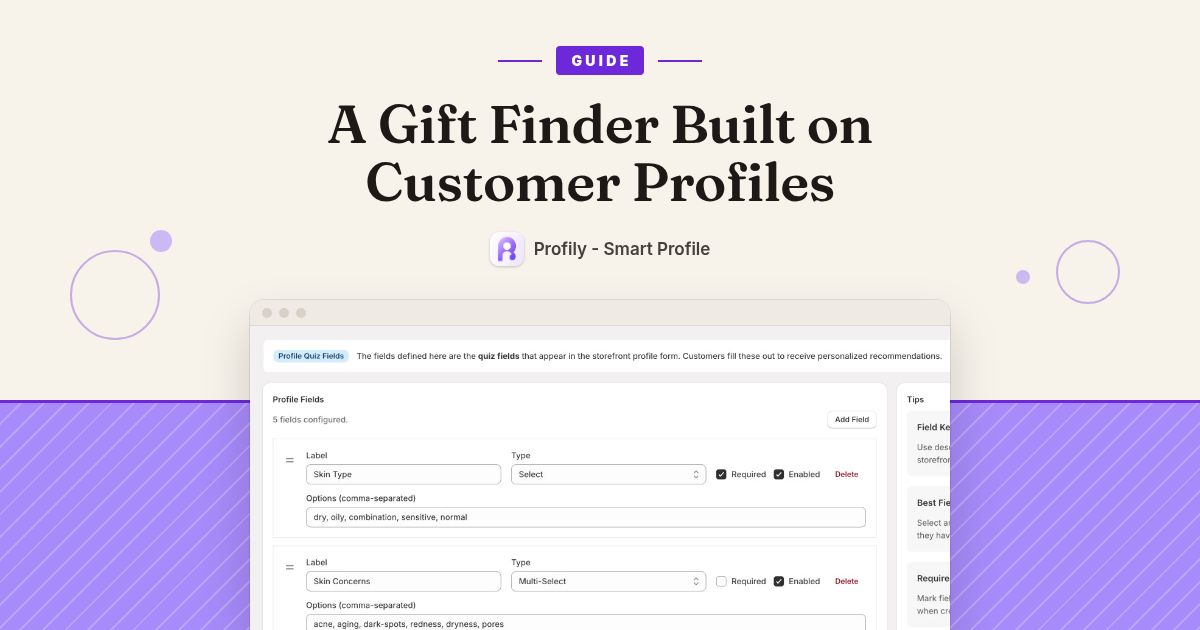
Everything starts with your profile fields. These are the questions on the storefront profile form, and the answers are what your matching rules use. In Profily you manage them under Profile Schema: each field has a Label, a Type, Options for Select / Multi-Select, and switches for Required and Enabled.
Select and Multi-Select fields are the most useful in rule conditions, because the answers are predictable. “Dry” is easy to match. A free-text answer like “my skin feels tight sometimes” is not.
From the Beauty & Skincare preset, two fields are enough for a gift finder:
- Skin Type (Select, required): dry, oily, combination, sensitive, normal
- Skin Concerns (Multi-Select): acne, aging, dark-spots, redness, dryness, pores
A few rules of thumb at this step:
- Only mark a field Required if your matches depend on it. Every extra required question is one more reason to abandon the form.
- Start from your industry preset. You can delete fields you do not need, then add or edit others later.
- Keep gift-season quizzes short. Two or three clear questions beat a long form that gift shoppers skip.
Step 2: Build matching rules with Fit badges
Next, create matching rules. Each rule has:
- Rule Name — describe the match, e.g. “Dry skin + dryness concern”
- Badge Type — Great Fit, Not Recommended, Warning, or Recommendation
- Priority — higher wins when more than one rule hits the same product
- Conditions — groups are OR’d; conditions inside a group are AND’d
- Target Products — All Products, Specific Collections, Specific Products, or By Tag
On the product page, badges use the Profile Badge labels. Defaults are “Fit for {name}” and “Not for {name}”. Recommendation badges show “Recommended for {name}” (that text is fixed in the app).
Example for a hydrating cream you want gift shoppers to see for dry skin:
- Condition: Skin Type equals dry
- Optional AND: Skin Concerns contains dryness
- Badge Type: Great Fit
- Apply to: Specific Collections (your moisturizers) or By Tag (e.g. hydrating)
Add a Not Recommended rule for products that should stay off the gift list for certain answers (for example, a strong active that is a poor fit for sensitive skin). Keep targets tight — a badge on the wrong product hurts trust more than no badge.
Step 3: Show a recommendations grid
The Profile Recommendations block on your “gift finder” or “my profiles” page shows products that match the active profile. Only Great Fit and Recommendation badge types feed that grid. Set Max Products (4–20) so gift shoppers get a short list, not your whole catalog.
That is the gift finder payoff: a short quiz → clear Fit / Not Fit badges on product pages → a recommendations grid of gifts that fit the recipient.
Step 4: Walk the gift shopper flow on the storefront
Before you promote it for Q4, run this path yourself:
- Turn on the Profile App embed in the theme editor (required for every Profily widget).
- Place Profile Form, Profile List, and Profile Recommendations on a page shoppers can find (e.g. “Gift finder” or “My profiles”).
- Add the Profile Badge block to the product template.
- Create a profile as if you were buying for someone else — name it for the recipient (e.g. “Mom — dry, dryness”).
- Open a few product pages: check “Fit for …” / “Not for …” / “Recommended for …”.
- Open the recommendations grid: does it look like a gift shortlist?
Guest profiles can stay on by default so shoppers do not have to log in first. On Basic, each customer can keep up to 3 profiles; on Pro you set your own Max Profiles Per Customer limit — useful when one shopper buys for several people.
Step 5: Test rules before gift traffic hits
Use Test This Rule in the rule editor: enter sample profile answers and confirm the rule matches (or does not) in real time. Then fill a real profile on the storefront and wait for matches to refresh before you judge the badges.
After a week, the Dashboard Overview shows profile counts, active rules, storefront events, and a profile → click conversion read — enough to see whether gift shoppers are using the finder.
Start with one gift path
Pick one gift category where fit matters (hydrators, SPF, fragrance-free, etc.), build one Great Fit rule and one Not Recommended rule, test both, and put the recommendations block on a simple gift-finder page. Then add the next rule.
Profily – Smart Profile works with Online Store 2.0 themes and needs no coding for the core setup. Basic is $9.99/mo and Pro is $29.99/mo; both include a 7-day free trial. There is no free plan.
Try Profily – Smart Profile free for 7 days on the Shopify App Store