Returning Shopper Profiles Without Extra Forms
Let returning shoppers skip the second form: guest profiles, a welcome-back greeting, a profile switcher, and Fit badges on product pages with Profily.
 Luke Tran
A shopper fills in a profile on their first visit. A week later they come back — and too many stores ask the same questions again: another quiz pop-up, another “tell us about yourself” form. Most people skip it the second time.
Profily – Smart Profile is built so the profile is a one-time job. The shopper answers your questions once, and on later visits the store picks up that profile: a short welcome back, the same Fit / Not for badges on product pages, and recommendations that match — with no second form.
This guide walks through the settings that make that work, and what the shopper sees on your storefront after each one. The example uses the Beauty & Skincare preset (Skin Type, Skin Concerns), but the same setup works for pet stores, baby & kids, or a custom schema.
Step 1: Ask once — keep the profile form short
Where: Profily → Profile Schema.
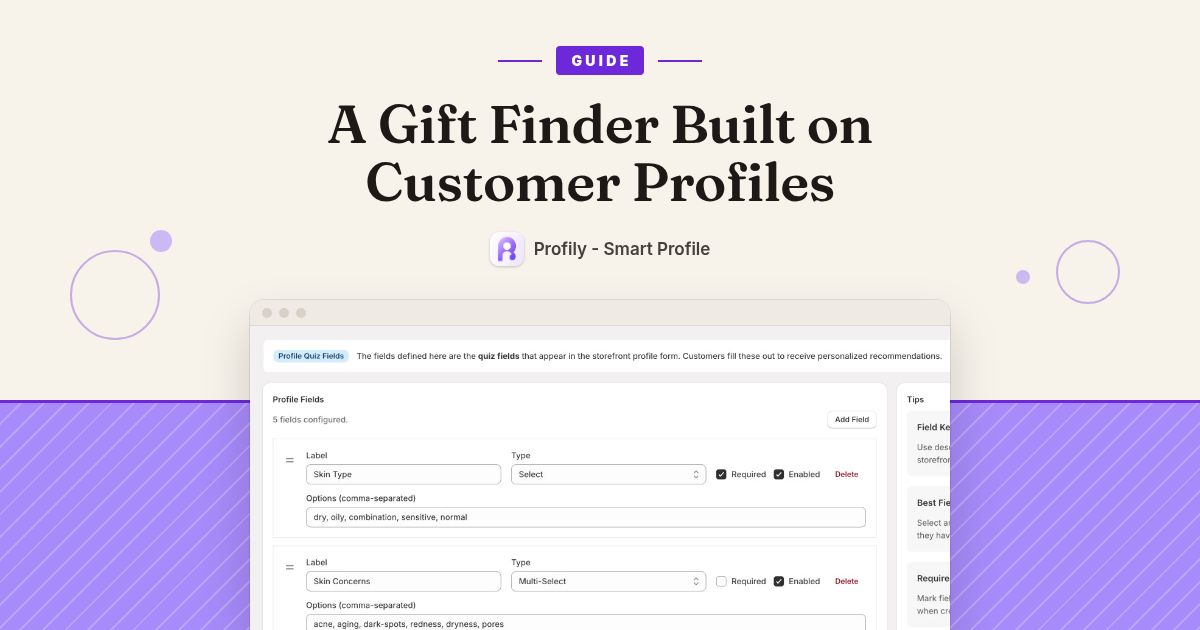
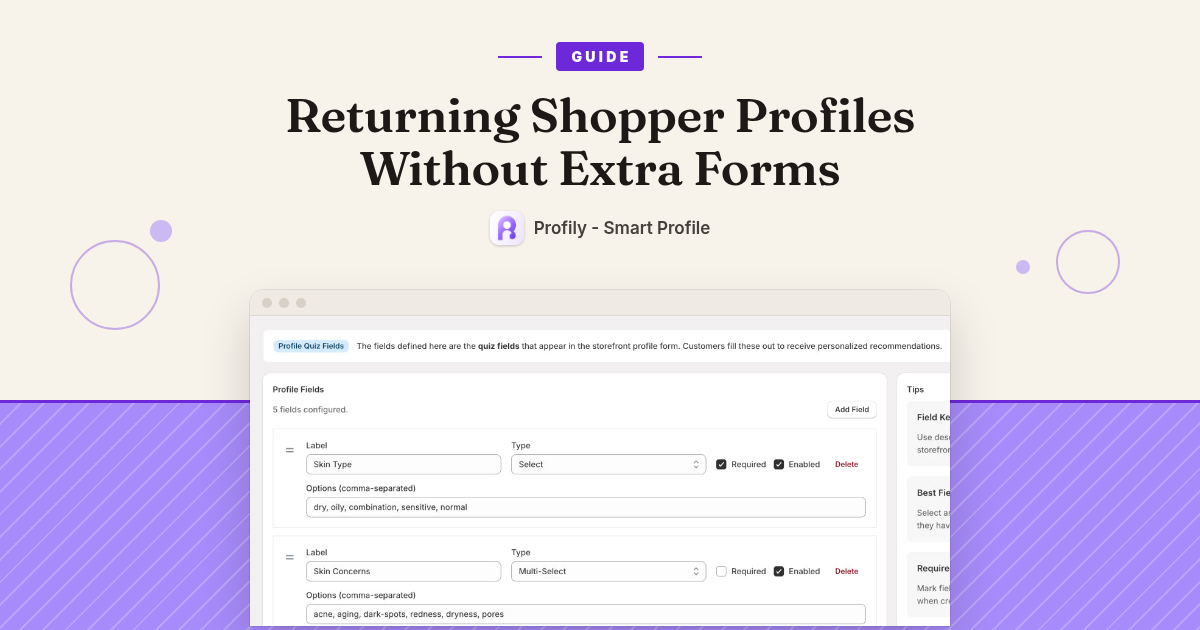
Every field here is a question on the storefront Profile Form. Each field has a Label, a Type (Text, Number, Select, Multi-Select, Yes/No…), Options (comma-separated) for Select and Multi-Select, and a Required checkbox. Drag the handle to change the order, then click Save Schema.
- Keep only the questions your matching rules use. If no rule reads a field, delete it. A shorter form gets finished.
- Prefer Select and Multi-Select. “Dry” is easy to match; a free-text sentence is not.
- Mark a field Required only if your badges depend on it.
On the storefront: the Profile Form shows your questions in the order you set, with your labels. Required fields get a red *, and submitting one empty shows “This field is required”. When the shopper submits, they see “Profile created!” — and that profile becomes the one Profily uses on later visits.
Step 2: Let guests keep a profile without logging in
Where: Profily → Settings → App Settings → Enable guest profiles (no login required). It is on by default. Click Save All Changes after any change.
On the storefront (on): a logged-out shopper can create a profile straight away. It is kept in their browser, so when they come back on the same browser the profile is still there. If they log in later, their guest profiles are merged into their customer account — they do not have to start over.
On the storefront (off): logged-out shoppers see a login prompt instead of the form: “Please log in to manage your profiles and see personalized recommendations.” with a Log In button. That is an extra step, so only turn guests off if you really want profiles tied to accounts.
In the same section, Max Profiles Per Customer sets how many profiles one shopper can keep (for example “me” and “a gift for Mom”). Basic allows up to 3; on Pro you set your own limit. A shopper who tries to create one more than the limit sees “Maximum of N profiles allowed”.
Step 3: Greet returning shoppers by profile name
Where: Shopify admin → Online Store → Themes → Customize → App embeds → Profile App → Welcome Modal group.
- Enable Welcome Modal — on by default.
- Default Greeting — “Welcome back” by default. Change it to match your store’s voice.
- Position — Top Right by default. The floating profile selector sits bottom-right by default, so keep the greeting at the top to avoid the two overlapping.
- Auto-dismiss (seconds, 0 = never) — 5 by default.
- Show on first visit (per session) — off by default. Turn this on for returning shoppers. “Show when profile is switched” and “Show when new profile is created” are on by default.
On the storefront: when a shopper who already has an active profile starts a new visit, a small greeting appears in the corner with their profile name (for example “Welcome back, Max”) and hides after the seconds you set. It only shows for shoppers who already have a profile, so first-time visitors are not interrupted. If the shopper closes it, it stays closed for the rest of that session.
Step 4: Let them switch profiles instead of filling a new form
Where: same Profile App embed → Profile Selector group: Enable Floating Selector (on by default), Default Label (“Select Profile”), and Position (Bottom Right or Bottom Left). For a “My profiles” page, add the Profile List block to a page template.
On the storefront: a small “Select Profile” pill sits in the bottom corner of every page. A returning shopper who is buying for someone else just picks that profile — no new form. The Profile List block shows all of their profiles with options to edit, delete, or switch, so if something changes (a new skin concern, a new size) they edit the profile instead of re-filling it.
Step 5: Show the payoff on product pages
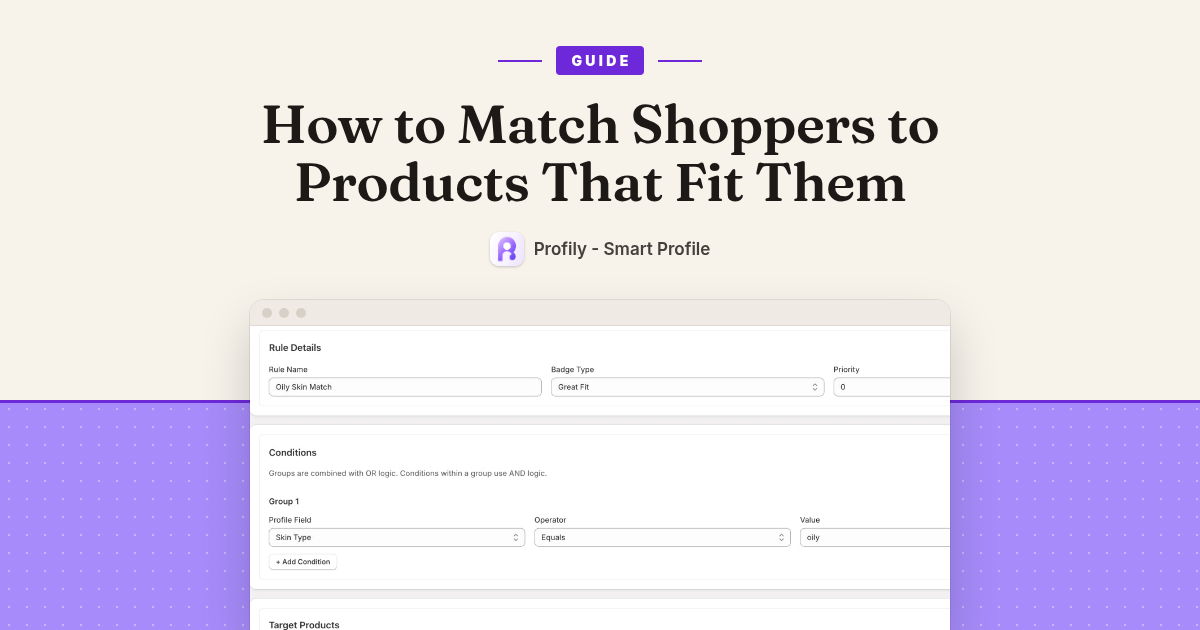
Where: theme editor → product template → add the Profile Badge block. Its Fit Label defaults to “Fit for {name}”, Not Fit Label to “Not for {name}”, and Warning Label to “Warning for {name}” — {name} is the profile name. Recommendation badges read “Recommended for {name}” (that text is fixed). Badges come from your Matching Rules.
On the storefront: when the active profile matches a rule for that product, the badge appears on the product page — “Fit for Max” — and clicking it opens the reasons. If nothing matches, the block hides itself. When the shopper switches profile, the badges follow the new profile.
Optional: add the Profile Recommendations block to the “My profiles” page. It lists products with Great Fit or Recommendation matches for the active profile; Max Products (4–20, default 8) caps the list. Without an active profile it shows “Select or create a profile to see personalized recommendations.”
Walk the returning-shopper path yourself
- Make sure the Profile App embed is on (every Profily widget needs it) and at least one matching rule is enabled.
- In a normal browser window (not private — closing a private window clears what the browser stored, including a guest profile), create a profile on your storefront, e.g. “Max”.
- Wait about two minutes. Matches are recomputed in the background, so badges are not instant.
- Open a product your rule targets: check the “Fit for Max” badge.
- Close the tab. Open your store again in a new tab: you should see the welcome greeting (if you turned on “Show on first visit”), and the same badge on that product page — without filling anything in again.
- Create a second profile and switch with the floating selector: the badges change to the new name.
Start with the basics
A short form, guest profiles on, the first-visit greeting turned on, and the Profile Badge on your product template. That is enough for a returning shopper to land, see their name, and see which products fit — without another form. The Dashboard Overview then shows how many profiles you have and how many storefront events they create.
Profily – Smart Profile works with Online Store 2.0 themes and needs no coding for the core setup. Basic is $9.99/mo and Pro is $29.99/mo; both include a 7-day free trial. There is no free plan.
Try Profily – Smart Profile free for 7 days on the Shopify App Store